Tools and Apps for Digital Creators to Boost Creativity and Efficiency
Discover the top tools and apps I personally use as a digital creator to boost creativity and efficiency. Step by step tips, real life examples, and workflow optimization strategies included.
Main Highlights Regarding Tools and Apps to Boost Creativity and Efficiency
• Learn which tools I personally use daily to boost creativity and maintain efficiency.
• Discover apps for task management, brainstorming, automation, and focus.
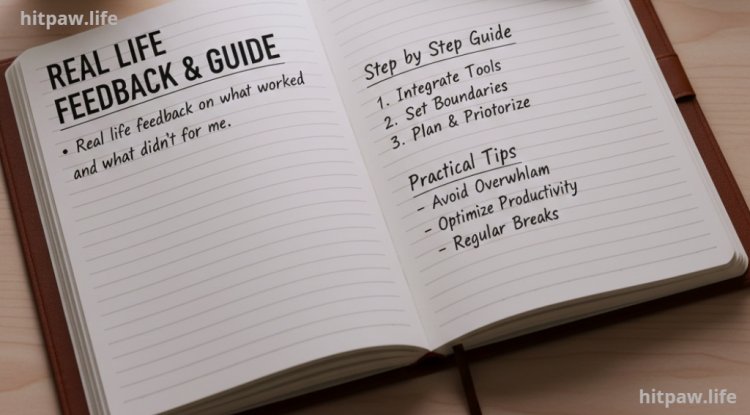
• Real life feedback on what worked and what didn’t for me.
• Step by step guide to integrate these tools into your daily workflow.
• Practical tips to avoid overwhelm and optimize productivity.
How I Boost My Creativity with the Right Tools
When I first started working as a digital creator, I constantly felt overwhelmed. Ideas were everywhere, deadlines were tight, and I often found myself switching between apps and platforms without a real system. My productivity suffered, and creativity sometimes stalled because my brain was cluttered with random tasks and tools.
Over time, through trial, error, and consistent testing, I discovered a set of tools and apps that genuinely enhanced my workflow, allowed me to capture ideas quickly, and automated repetitive tasks. Using them correctly not only improved my efficiency but also boosted my creative output.
In this guide, I’m sharing the tools I use, how I use them, real life examples, and step by step instructions to integrate them into your daily workflow. By the end, you’ll have a clear system to streamline your work, focus on creativity, and eliminate wasted time.
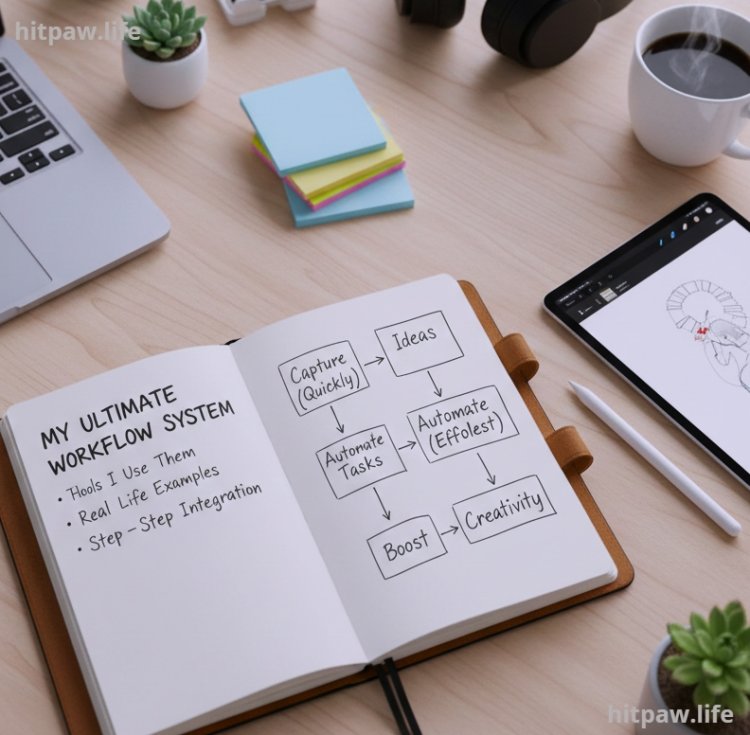
Why Digital Creators Need Tools and Apps
Before jumping into the tools, here’s what I realized during my early days:
1. Ideas don’t wait: Creativity strikes at random. Without a system, brilliant ideas get lost.
2. Tasks pile up quickly: Managing multiple projects without proper organization leads to missed deadlines and stress.
3. Manual processes are a time sink: Repeating the same tasks manually wastes hours daily.
4. Collaboration is messy without the right platform: Sharing files, feedback, and updates across multiple channels is inefficient.
Using the right tools solves these problems by centralizing your workflow, automating repetitive tasks, and giving your brain space to focus on creativity rather than administration.
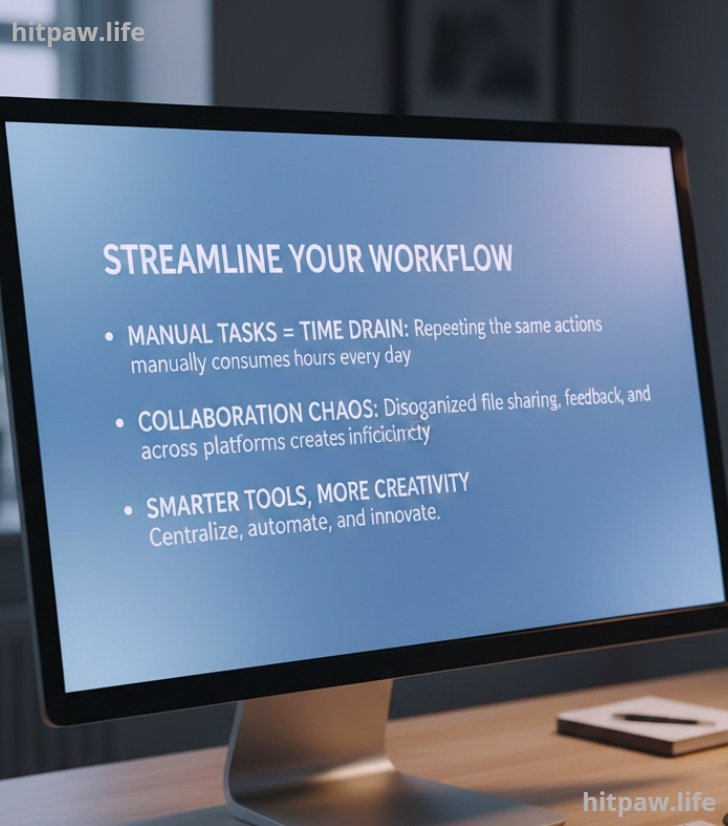
Why Digital Creators Need Tools and Apps
Before jumping into the tools, here’s what I realized during my early days:
1. Ideas don’t wait: Creativity strikes at random. Without a system, brilliant ideas get lost.
2. Tasks pile up quickly: Managing multiple projects without proper organization leads to missed deadlines and stress.
3. Manual processes are a time sink: Repeating the same tasks manually wastes hours daily.
4. Collaboration is messy without the right platform: Sharing files, feedback, and updates across multiple channels is inefficient.
Using the right tools solves these problems by centralizing your workflow, automating repetitive tasks, and giving your brain space to focus on creativity rather than administration.
Materials I Personally Use
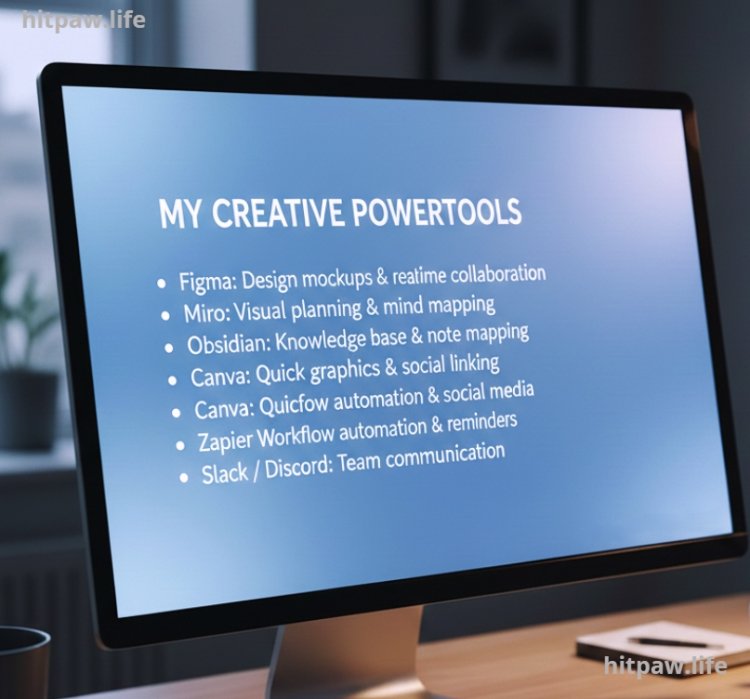
Here’s my practical toolkit for staying productive and creative:
• Notion:
I use Notion to organize all my projects, ideas, and content calendars. It’s like my digital brain. I store notes, articles, design concepts, and deadlines all in one place.
• Trello:
A Kanban style task manager. I use Trello for smaller tasks or when collaborating with a team on short term projects. I love how it visually shows what’s in progress, completed, or pending.
• ClickUp:
A more advanced tool for project management. I track long term projects, goals, and automation within ClickUp. This helps me see big picture progress.
• Figma:
Essential for design mockups, prototypes, and brainstorming visually. I collaborate with other creatives in real time on projects.
• Miro:
My go to for mind mapping and visual idea generation. It’s perfect for planning courses, marketing campaigns, and brainstorming sessions.
• Obsidian:
Personal knowledge management and note linking app. It allows me to connect ideas, reference old notes, and build a personal knowledge base.
• Canva:
Quick graphics, social media posts, and presentations. Canva saves me hours compared to traditional design software.
• Zapier:
Automates repetitive workflows, like transferring tasks between apps, sending reminders, or updating spreadsheets automatically.
• Forest App:
Gamified focus timer to help me stay concentrated and avoid distractions while working on creative projects.
• Slack / Discord:
For team communication and real time updates. It reduces the need for endless email threads.
Tip: Start with fewer apps to avoid overwhelm. I began with Trello and Canva, then gradually added Notion and Miro as my workflow matured.
Step by Step Guide: Integrating Tools into Your Daily Workflow
Step 1: Morning Planning
I start my day by reviewing Notion for the day’s priorities. I organize tasks by urgency and project type. This helps me focus on what truly matters rather than jumping into random tasks.
Step 2: Brainstorming
I dedicate 20 minutes daily to brainstorming with Miro. Ideas, sketches, or marketing concepts go straight onto a board. This method prevents creative blocks and keeps my ideas organized for later development.
Step 3: Task Management & Collaboration
For smaller tasks, Trello works best. For larger projects, ClickUp helps me track multiple deadlines, assign tasks, and set automation. This combination prevents things from slipping through the cracks.
Step 4: Design & Content Creation
Figma and Canva are essential tools. I usually draft in Figma for client projects, refine graphics in Canva, and store all files in organized folders.
Step 5: Focus Blocks
I work in 45minute intervals using the Forest App, with 10minute breaks between sessions. This technique helps me maintain focus and reduces burnout.
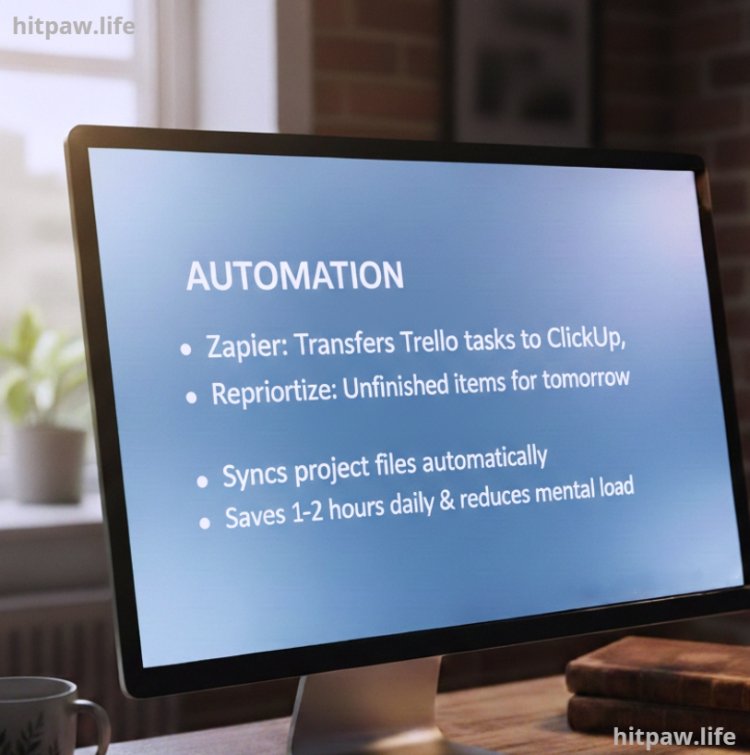
Step 6: Automation
Zapier automates tasks like transferring completed Trello cards to ClickUp, sending reminders, or syncing project files. Automation saves 1 to 2 hours daily and reduces mental load.
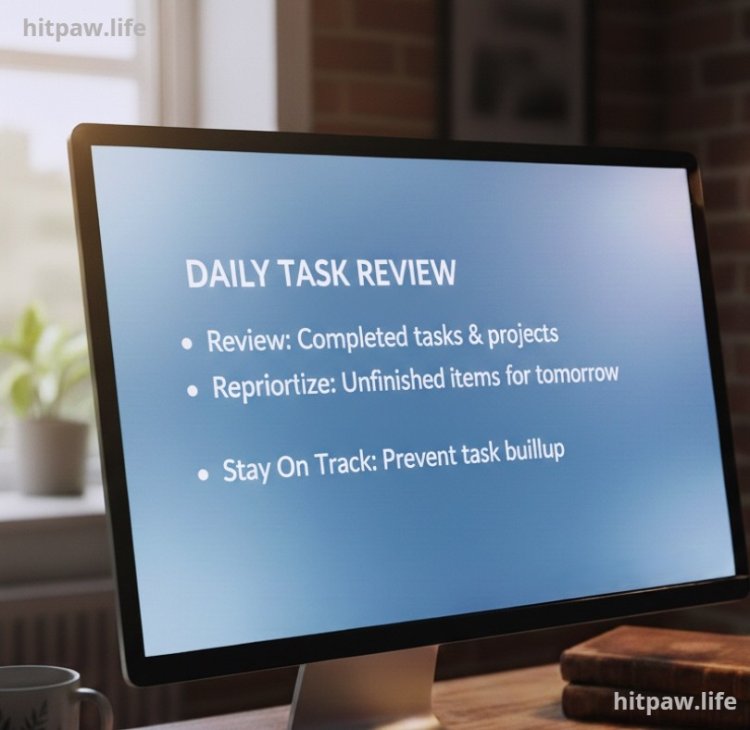
Step 7: End of Day Review
I review completed tasks and projects. Anything unfinished is reprioritized for the next day. This habit keeps me on track and prevents tasks from piling up.
Practical Examples from My Work
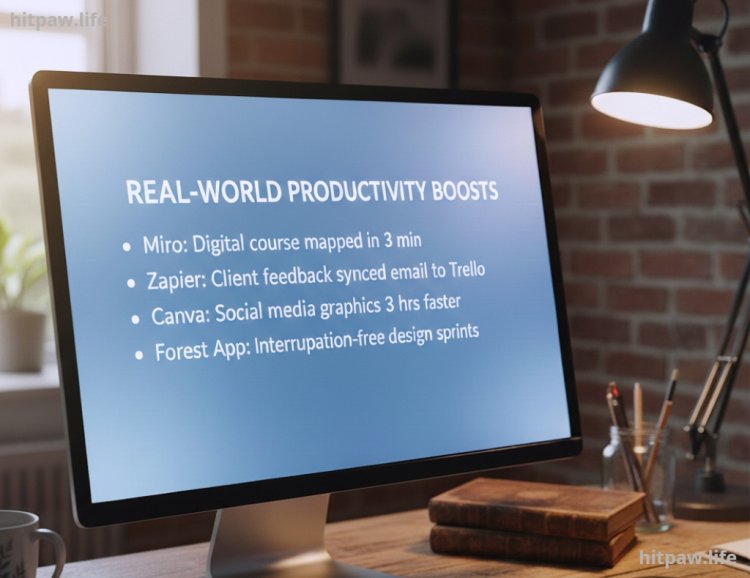
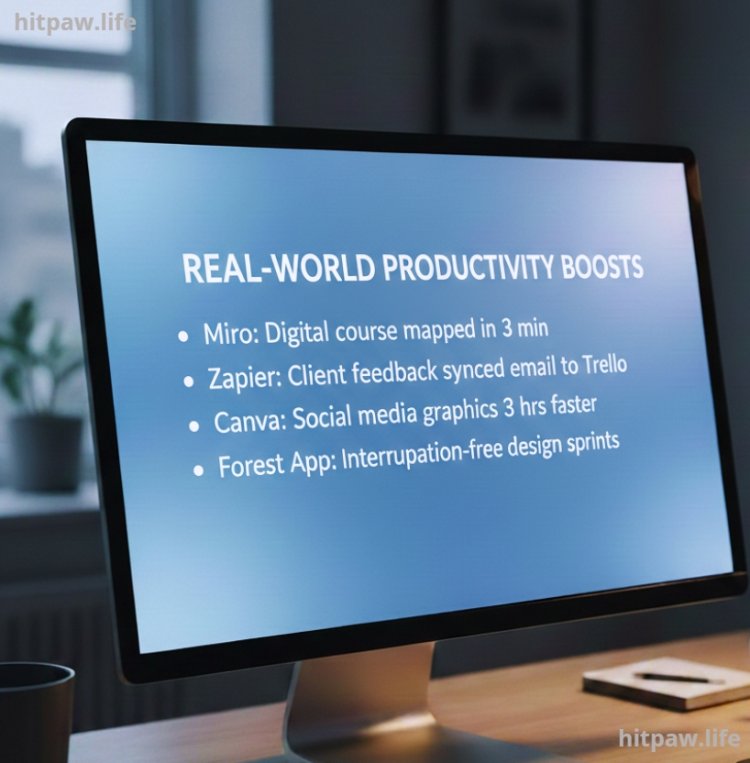
• Using Miro, I mapped out an entire digital course in under 30 minutes, connecting ideas visually.
• Zapier automatically synced client feedback from email to Trello, preventing missed messages.
• Canva cut my social media content creation time by 3 hours weekly compared to Photoshop.
• Forest App focus blocks helped me finish design sprints without interruptions.
What I Got Wrong the First Time
• I tried using too many tools at once. I felt productive, but I was actually overwhelmed and less creative.
• Sticky notes were my initial solution for tasks, but ideas got lost. Switching to Notion fixed this.
• I underestimated automation. Manual logging of tasks consumed hours daily.
Lesson: Start simple. Gradually introduce tools, automate repetitive tasks, and build a system that works for you.
Maintenance
|
Tool/App |
Frequency |
Best Practice |
|
Notion |
Daily |
Review tasks first thing in the morning |
|
Trello |
Daily |
Move completed tasks; prioritize new ones |
|
ClickUp |
Daily |
Track long term projects and goals |
|
Figma |
Weekly |
Update mockups; gather team feedback |
|
Miro |
Daily |
Capture random ideas; plan new projects |
|
Zapier |
Monthly |
Review automations for errors |
|
Forest App |
Daily |
Work in 45 to 50 min focus sessions |
|
Canva |
Weekly |
Refresh templates for efficiency |
Tips From My Experience
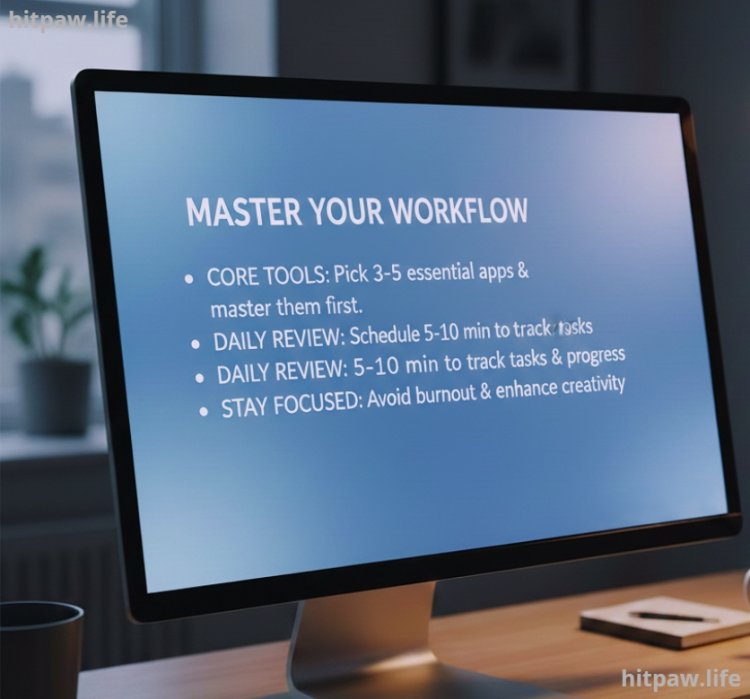
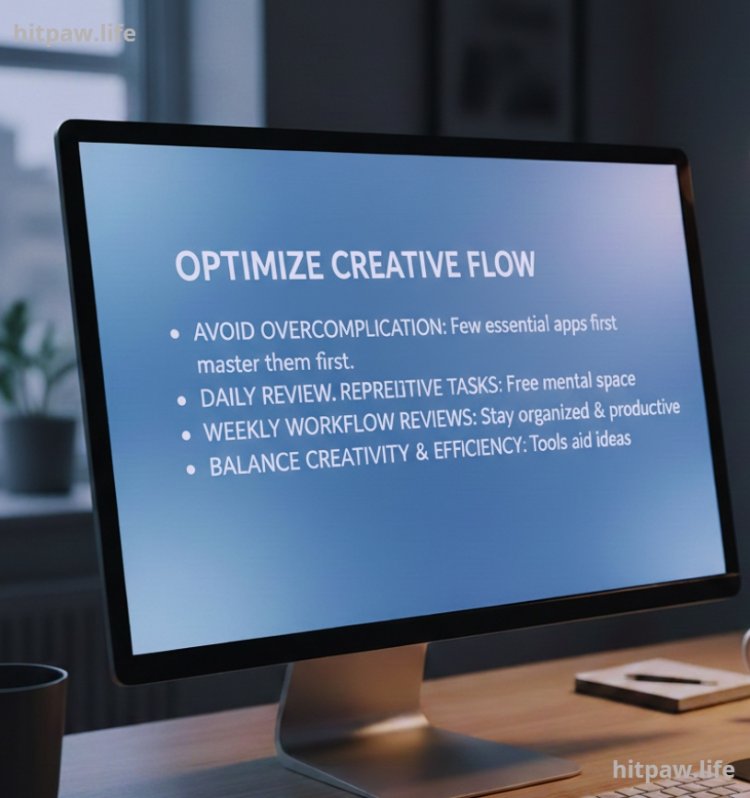
When I first started using multiple tools for content creation, I tried to track everything at once and ended up overwhelmed. My tip: pick a core set of 3 to 5 tools and master them first. Use the rest only when necessary. This keeps your workflow simple, efficient, and actually enjoyable.
I also learned to schedule short daily reviews 5 to10 minutes to check tasks and progress. It saves hours of confusion later and keeps creativity flowing without burnout.
In Summary
• Avoid overcomplicating with dozens of apps; pick a few essentials first.
• Automate repetitive tasks to free mental space for creativity.
• Test tools, tweak your workflow, and find what fits your style.
• Weekly workflow reviews are critical to stay organized and productive.
• Balance creativity and efficiency tools should aid ideas, not constrain them.
FAQs About Tools and Apps for Digital Creators
1. Which tools should I start with as a beginner?
I recommend starting with Notion for planning and Trello for task management. These apps help you organize ideas, track progress, and avoid overwhelm. Once you’re comfortable, you can add apps like Figma, Canva, or Miro.
2. Can free versions of these apps be enough?
Absolutely. Most free versions of Notion, Trello, Canva, and Figma offer enough functionality for solo creators or small projects. Paid plans mainly provide extra storage, advanced features, and team collaboration options.
3. How do these tools actually boost creativity?
Visual brainstorming tools like Miro or Figma let you map ideas quickly. Automation tools like Zapier free your mind from repetitive tasks so you can focus on creating, rather than managing.
4. How do I avoid using too many apps at once?
Start with 3 to 5 core tools and master them first. Only add more if they solve a specific pain point. Too many apps can actually reduce productivity instead of improving it.
5. How often should I review my workflow?
I review my workflow weekly. This helps me remove inefficient practices, reorganize tasks, and ensure that every tool is contributing to productivity and creativity.
6. Are these apps suitable for team collaboration?
Yes. ClickUp, Trello, Slack, Figma, and Miro all allow real time collaboration, making it easier to share ideas, give feedback, and manage projects with a team effectively.
What's Your Reaction?